Odoo SaaS Kit - Quick Start
SSH Key allows you to connect to servers, you can still use a password to connect, but SSH Key
is recommended, especially for interacting with git.
First you need to have a pair of ssh keys, including private key and public key. If you don't
have one, you can see instructions for creating an ssh key here:
- Windows
- linux:
$ ssh-keygen -t rsa -C 'youremail@example.com' -f odoo_sshkey
The next step is to go to the SSH Keys menu and create an ssh key:
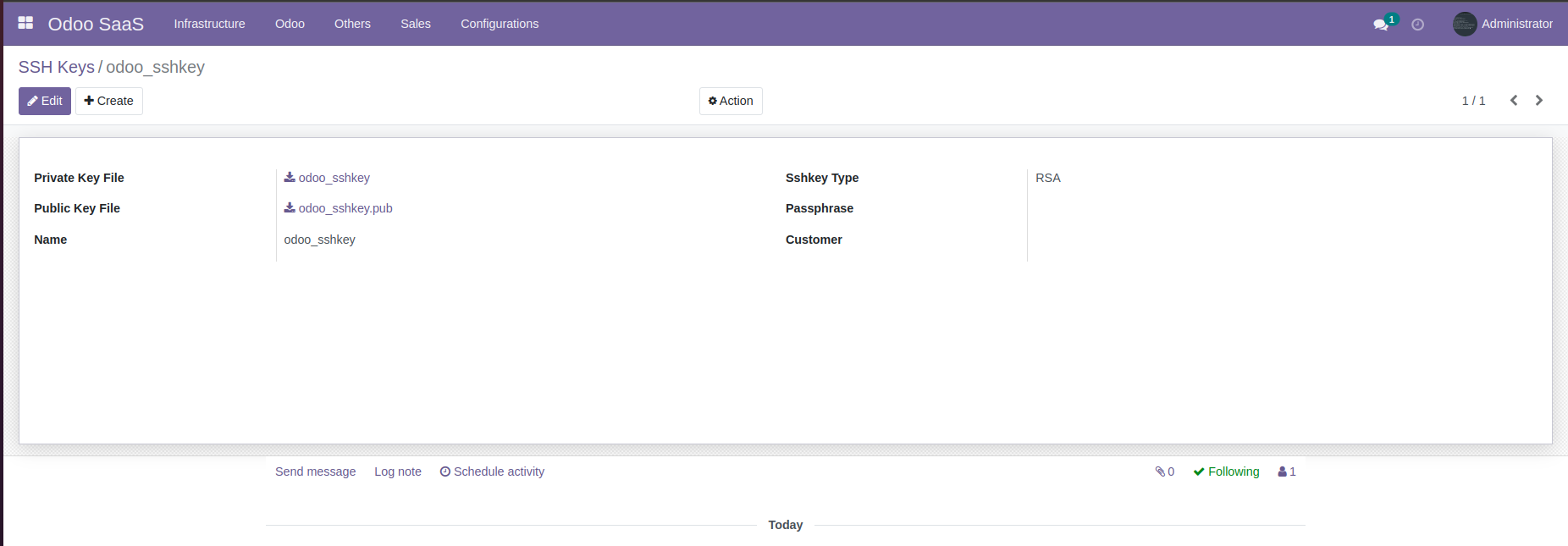
The server can be a physical server, cloud server. Odoo SaaS Kit currently only supports linux,
and tested on Ubuntu servers.
You need to fill in connection information such as IP, ssh user, ssh port. SSH user must be
root.
Important:: To be able to connect, you need to put the newly created public
key on the server:
To put the ssh key on the server, you can copy the content of the public key file and paste it
into a new line
in file
/root/.ssh/authorized_keys ở trên server.
You also need to put the private key on the server, the private key is mainly used to connect to
git
remotes.
This is a quick tutorial, so this article won't go into too much detail.
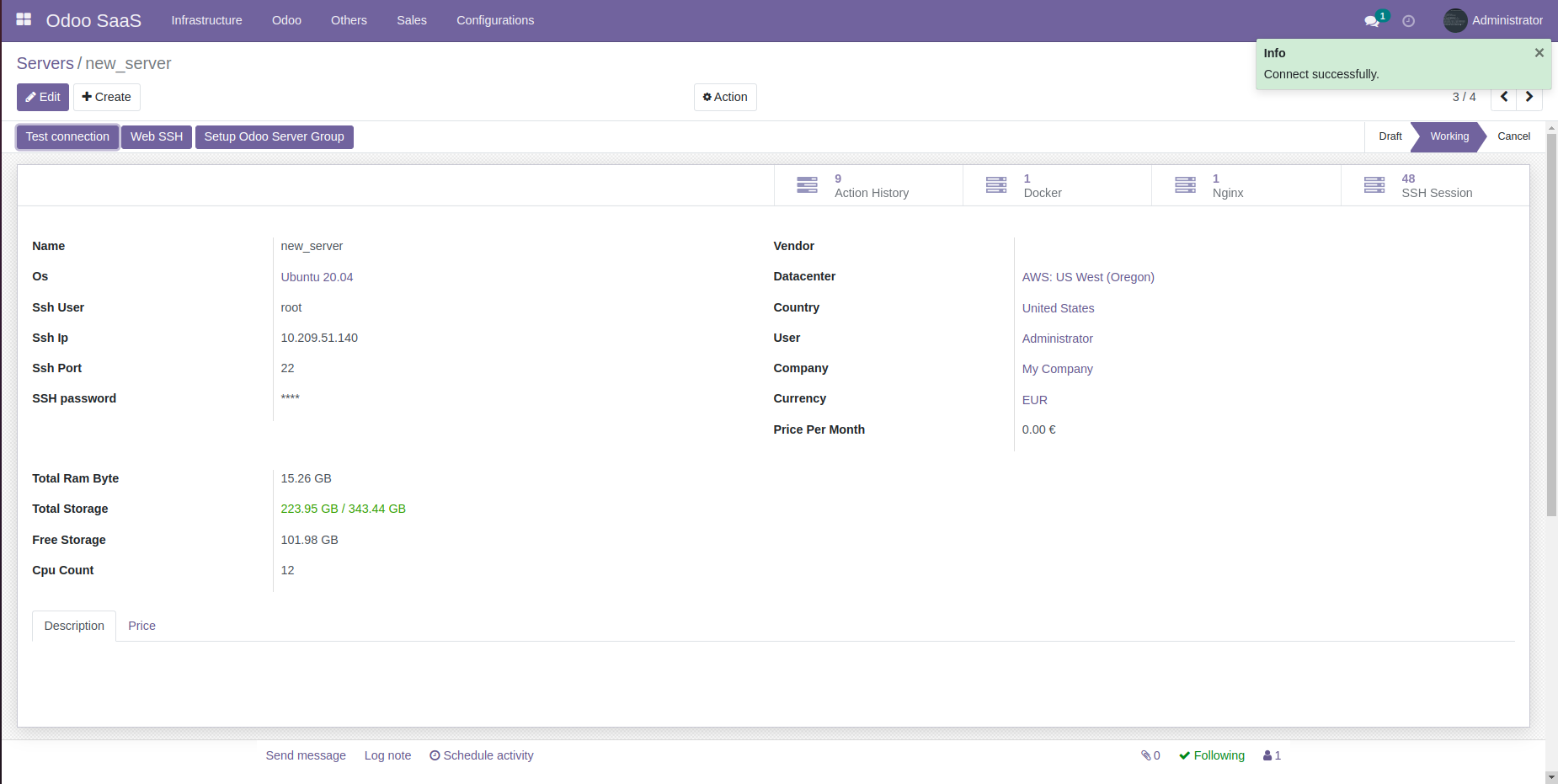
After connecting, click the button Test connection to test the connection
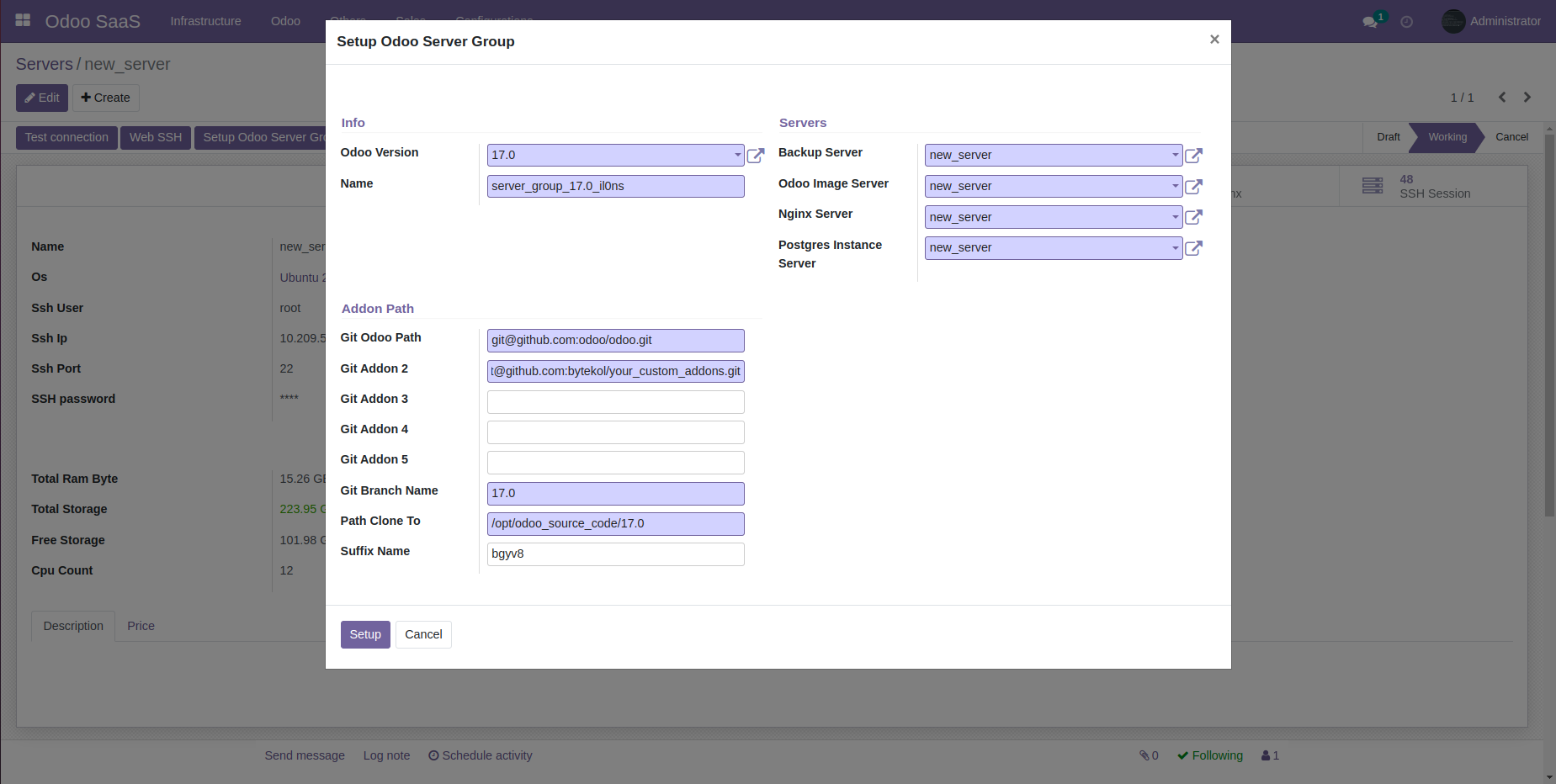
Odoo Server Group is a collection of servers (or 1 server), they contain the necessary functions to launch an odoo database. In other words, you can create multiple odoo databases with the same parameters (source code, odoo version, ...) from one odoo server group. Odoo Server Group contains information such as:
- Odoo Version
- Odoo Source Code (and odoo addons)
- Servers
- ....
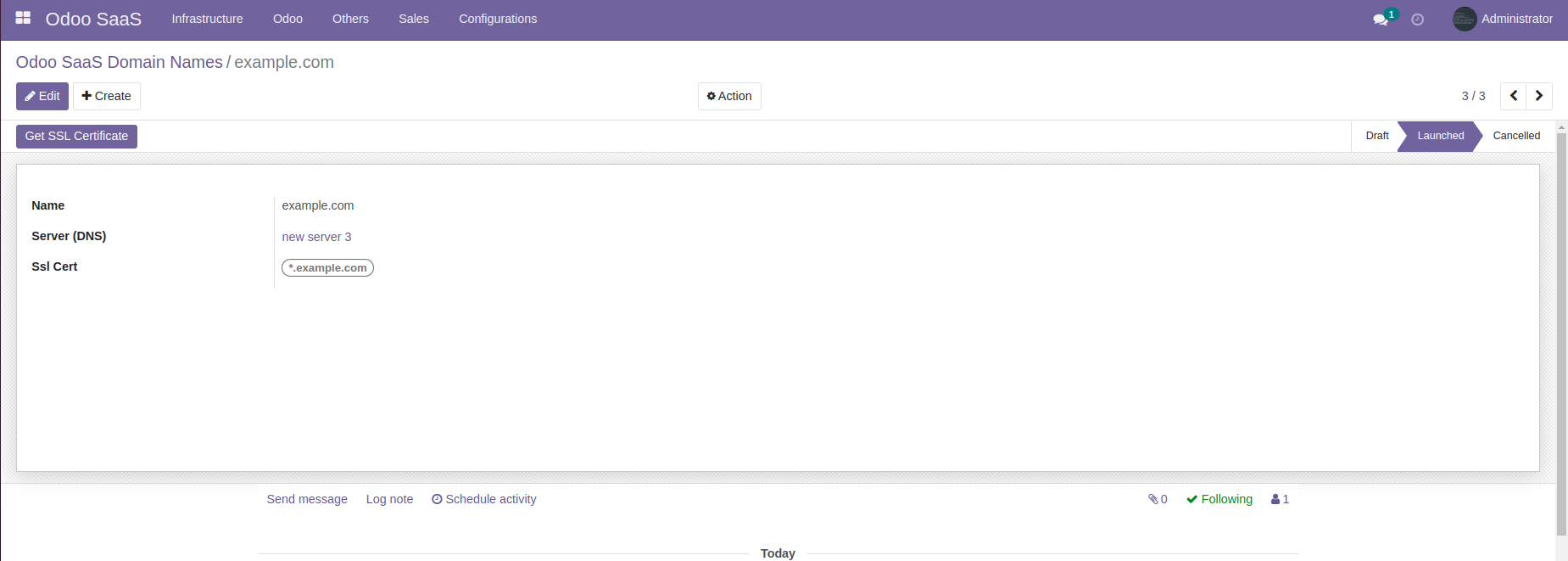
Go to the SaaS Domain Name menu, create a new saas domain name.
You can create a fake domain to test. And click get SSL.
For real domains, the creation process will be more complicated, requiring you to own that
domain
name.
Of course, full detailed instructions will be included in the module.
Click "Run Setup Script" to automate the setup process.

After setting up Odoo Server Group and SaaS Domain Name, you can now start launching an odoo entity!
Odoo Module/App is used to store installed applications on Odoo Entities and allows users to
select
Apps on the Odoo SaaS Pricing page outside the website.
To create an Odoo Module/App, go to Menu Odoo SaaS > Others > Odoo Module.
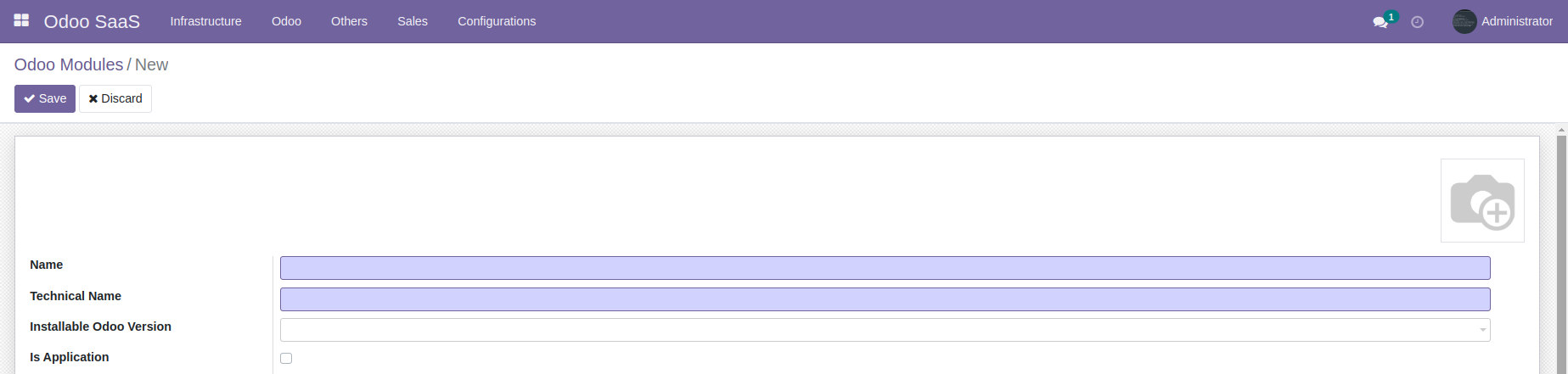
Of course, manually creating each Odoo Module like this is very time-consuming.
To automate the creation of odoo modules/apps from your source,
go to the Odoo Server Group record, click on the button "Find and create/update odoo
modules"
Note that this is an additional feature and is not available in the Odoo SaaS Kit,
which you can purchase here

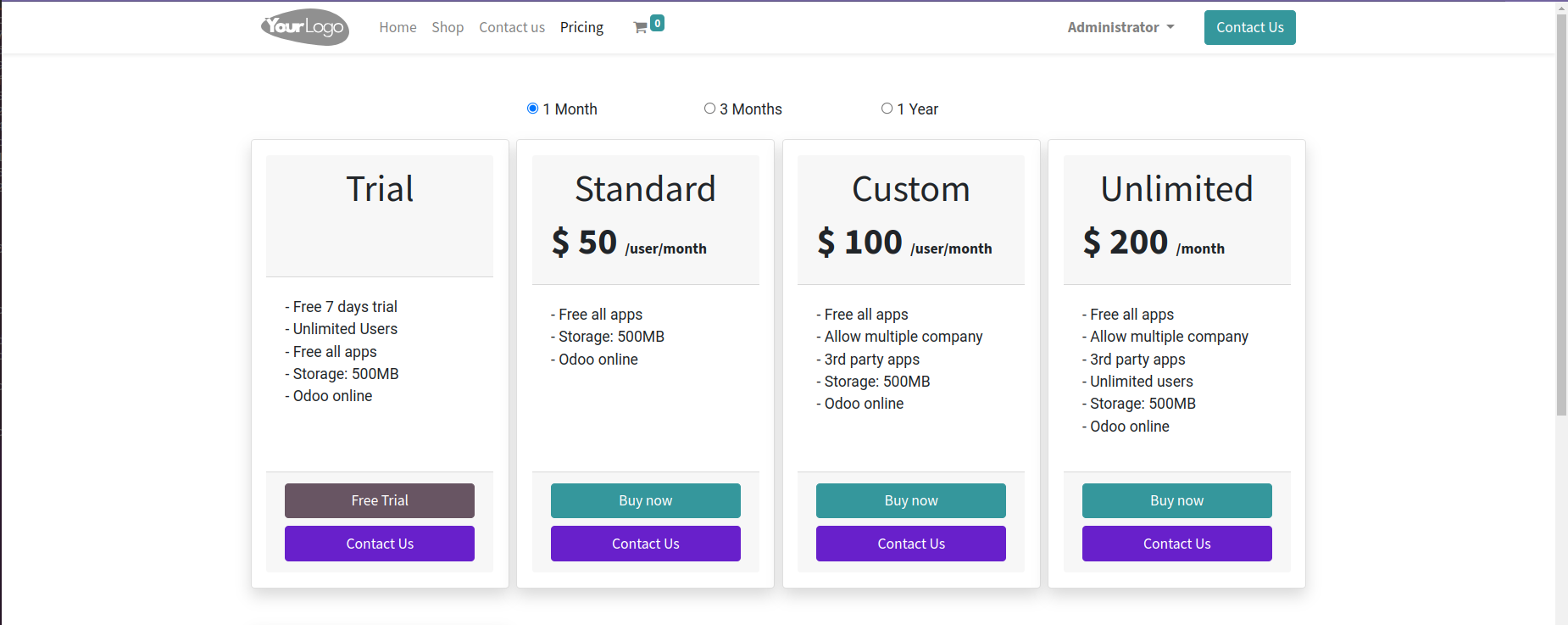
Odoo SaaS Plan is a record that allows you to sell Odoo SaaS under different policies.
You can define plans with different information for each plan.
With the attributes that Odoo SaaS Plan supports such as:
- Plan Name
- Price
- Is it a Trial Plan?
- Sell according to the number of users created by the customer or unlimited.
- Maximum storage limit of customer odoo entity.
- Allow Multiple Companies
- Allow Custom Source Code
- ...

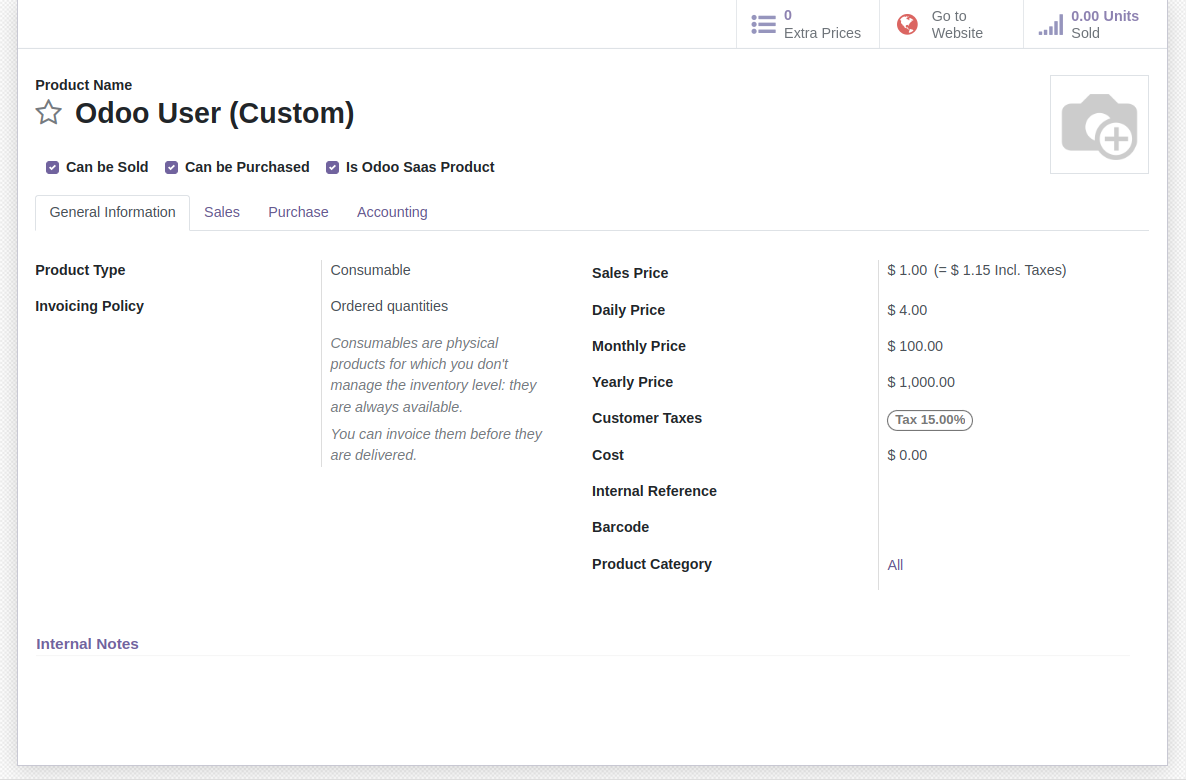
Currently, Odoo SaaS Kit supports you to sell in 3 price cycles as follows:
- Daily Price
- Monthly Price
- Yearly Price
For the User Based Pricing plan, the amount customers pay will correspond to the number of
internal
users in their odoo entity.
For example, customer A buys "Custom" plan (User Based Pricing) for $10/month, and they use 3
users,
the
monthly payment is $30. On the contrary, if that plan does not enable User Based Pricing, the
amount
they have to pay monthly is $10.
Odoo SaaS Period are periods that customers can choose to pay, you can create many different periods. The units of the periods are: day, month, year. That unit will apply the price corresponding to the daily price, monthly price, yearly price that you define in the product.

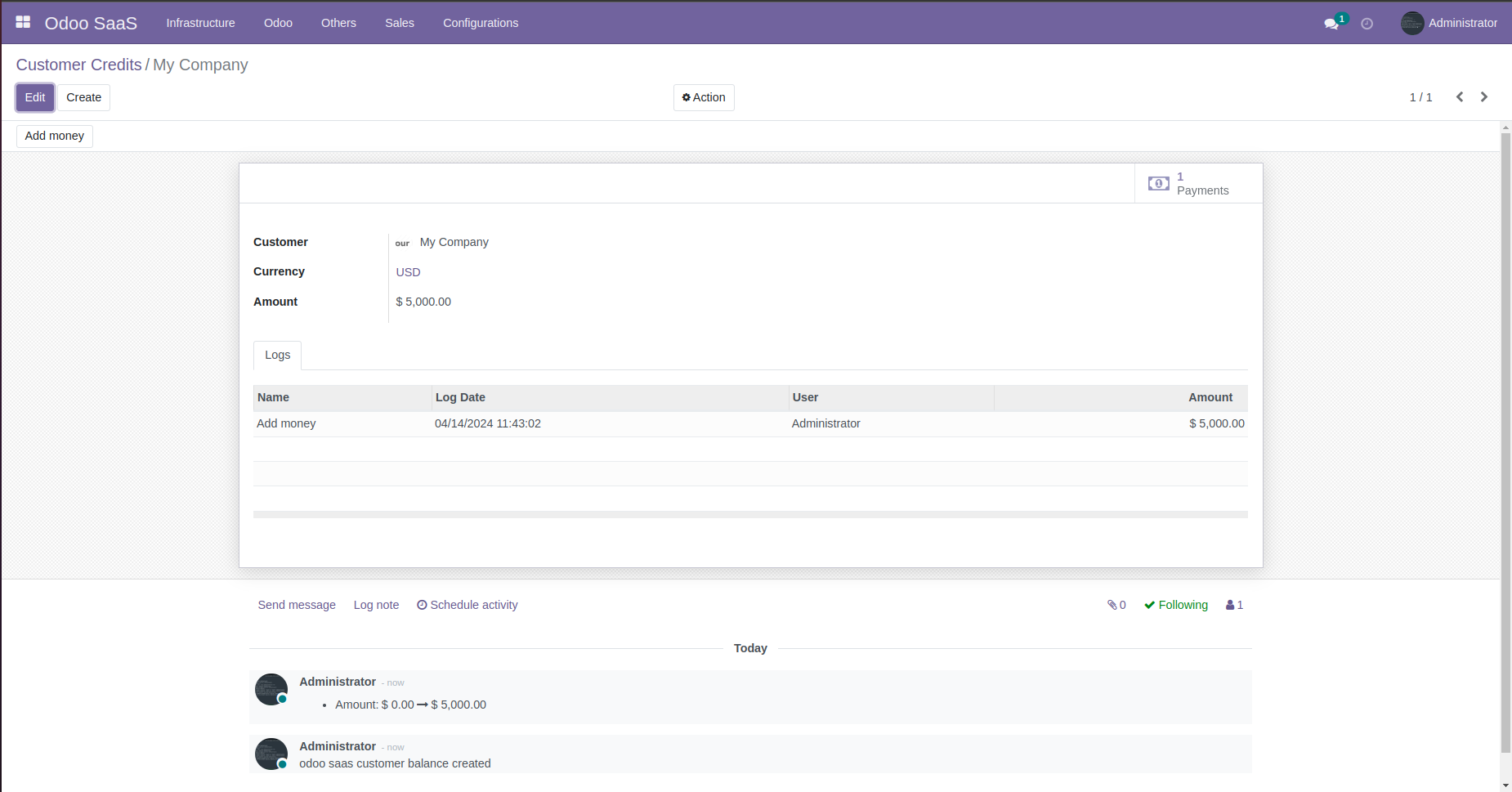
Customer Credit is the customer's balance. Simply put, customers need to deposit money to be able to pay for their Odoo SaaS purchases.
Odoo SaaS Kit allows you to sell Odoo SaaS as a Subscription. Subscription record includes information about plan, period, money in/out, customer, odoo entity, ...
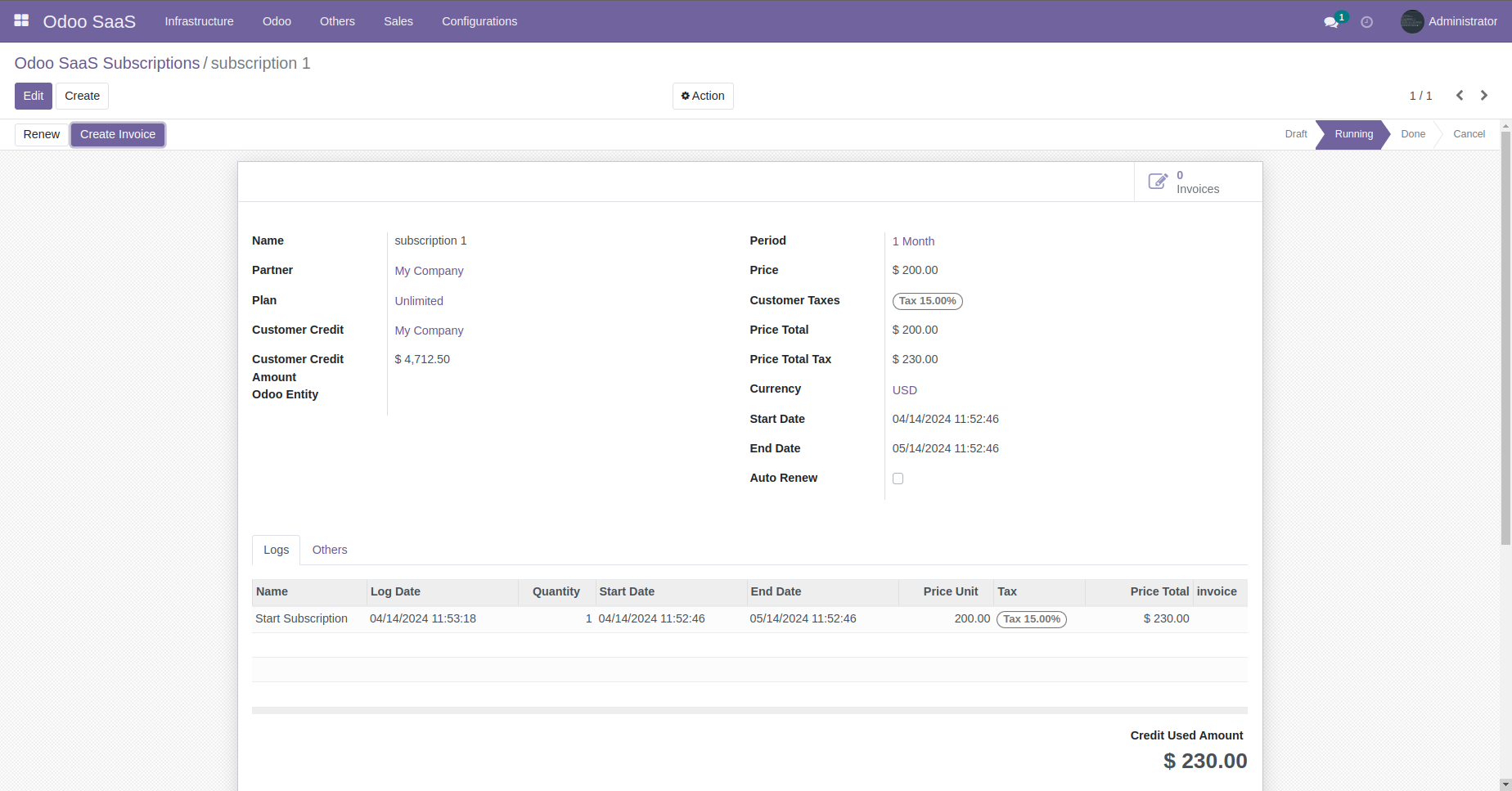
- 1. Create Customer Credit
- 2. Create Odoo SaaS Subscription and attach it to the customer's Odoo Entity.
When the subscription's end date arrives, the system will automatically renew (in case the customer has money left and the subscription is marked as automatically renewed). Or you can manually renew for customers to continue using. If you do not renew the subscription will be closed and the Odoo Entity associated with it will be disabled, meaning it will no longer be accessible.
When a customer wants to use more users, you can renew to increase the number of users, and the system will automatically deduct money corresponding to the time that user is used.
In case the customer wants to switch plans, you can also renew. At this time, the system will calculate to return the remaining money or deduct additional money depending on the price of the new plan.
Odoo SaaS Kit has the ability to automatically create invoices for subscriptions, or you can create manual invoices for customer subscriptions.
1. Publish the odoo saas plans, periods, odoo saas domain name to the website


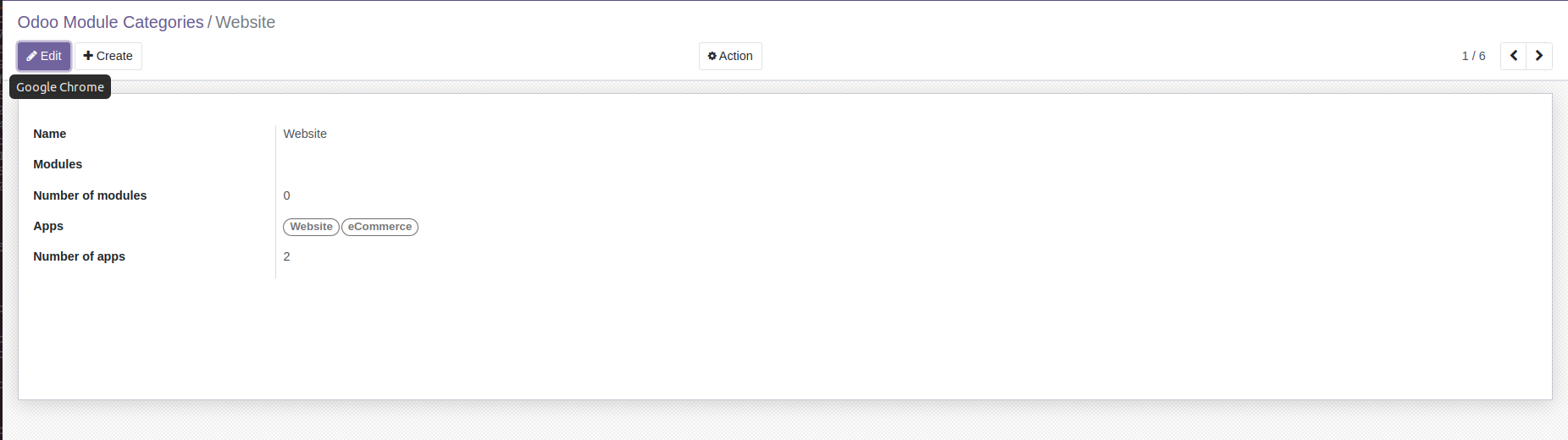
2. Add some app to Odoo Module Category
3. Pricing page
4. Buy on the pricing page
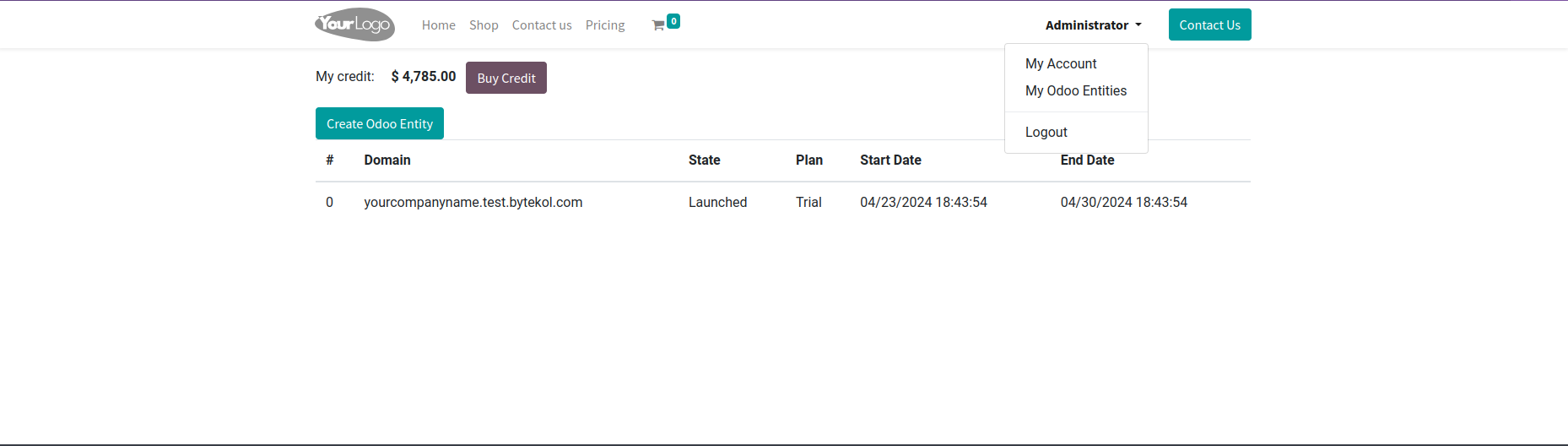
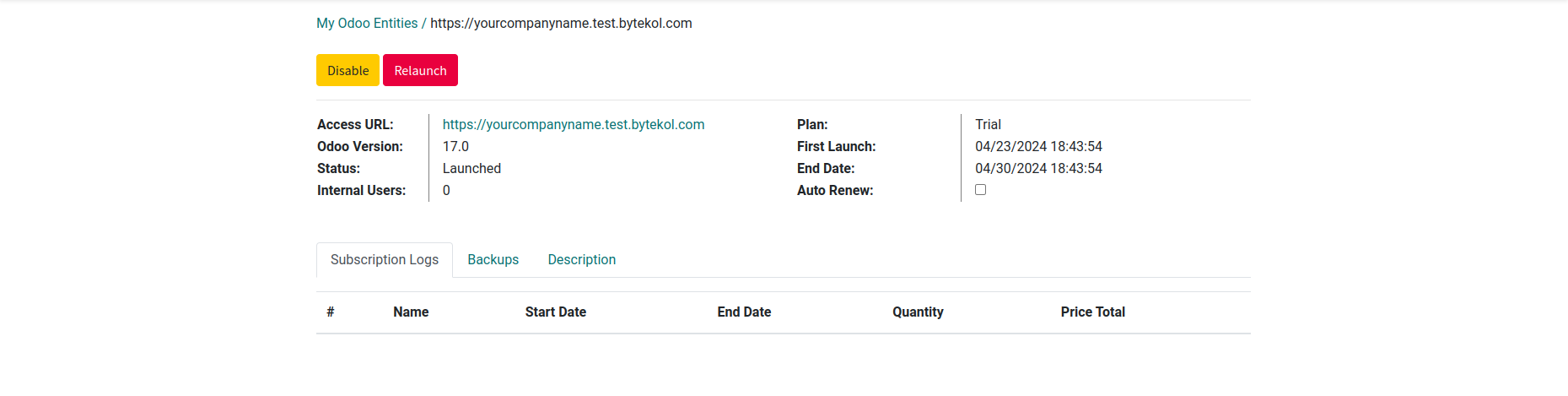
Customers can only create additional users when the current number of users in their system is less than the number of users they purchased. Customers can purchase new users in their Odoo Entity management page. And they will only have to pay the remaining amount of the period.
For example: Customers purchase the "Custom" package for a 6-month period for $100/user, starting January 1, 2021. By March 1, 2021, if they want to buy a new user, they only need to pay an additional $50.
In case the customer no longer needs to use the user, the admin can renew to refund the remaining money to the customer's "Customer Credit".